How to Export Grafana Dashboard to PDF, CSV & Excel (2026)
How to Export Grafana Dashboard to PDF, CSV & Excel
The easiest way to export Grafana dashboard to PDF, CSV, or Excel depends on your plan and your workflow. Native Grafana lets you export CSV data manually from any panel. However, it does not support PDF exports on the free OSS version, and it has no Excel export at all. This guide covers every method available in 2026 native options, their limits, and when a third-party tool like DataViRe is the right choice.
Why Teams Need to Export Grafana Dashboard Data
Most teams start by sharing screenshots or copying data by hand. This works at first. However, as teams grow, the need to export Grafana dashboard data in clean, usable formats becomes unavoidable.
You need a proper export solution when:
- Stakeholders want data in Excel for analysis or audits
- Clients need a PDF report they can read without logging into Grafana
- Compliance teams need scheduled CSV exports on a fixed timeline
- Finance or ops teams need structured data, not raw dashboard screenshots
- Data must flow into BI tools or external systems automatically
At that point, the built-in Grafana export options are simply not enough. Therefore, teams look for tools that can handle PDF, CSV, and Excel exports automatically.
Native Ways to Export Grafana Dashboard Data
Before looking at third-party tools, it helps to understand what Grafana already offers. Native exports are useful for simple, one-off tasks. However, they were not built for automated or large-scale workflows.
1. Export Grafana Dashboard Data as CSV (Panel Inspect)
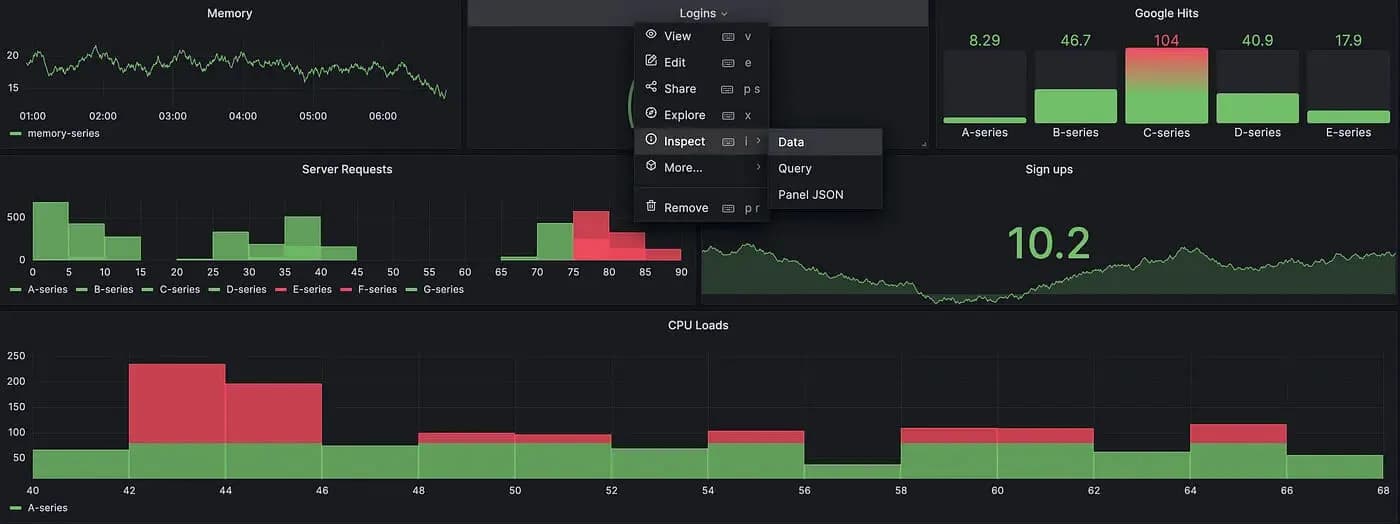
The most common native way to export Grafana dashboard data is through the Panel Inspect feature. Here is how it works:
- Open any dashboard panel
- Click the panel menu
- Select Inspect Data
- Download the data as a CSV file
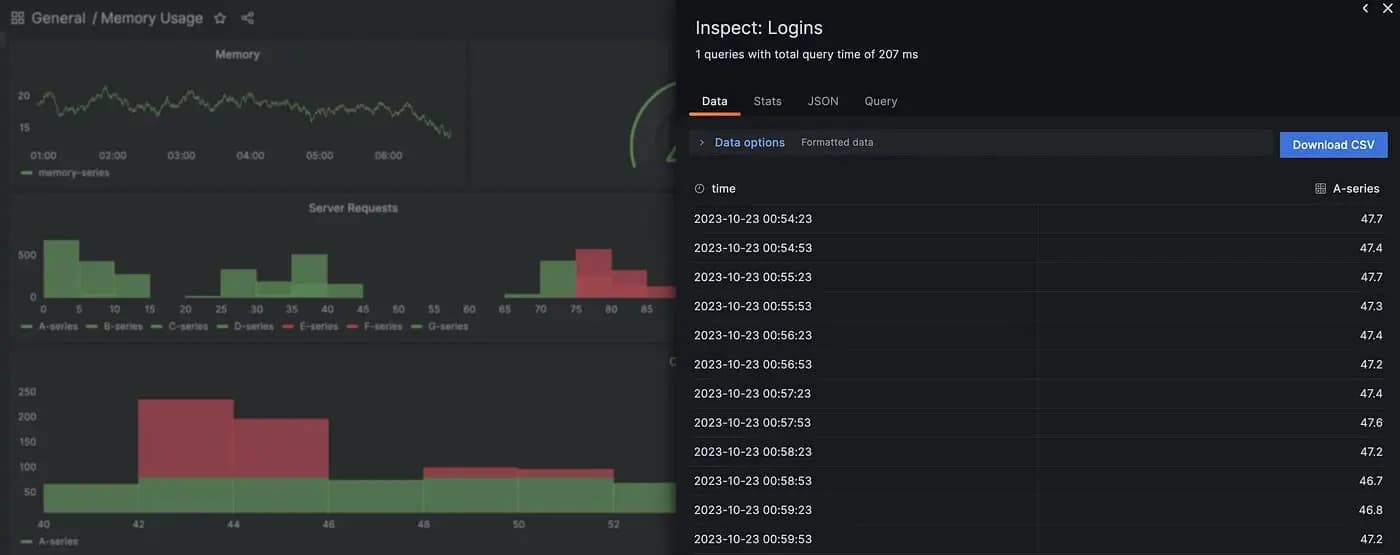
This method is simple and needs no extra setup. In fact, it works out of the box with no plugins required. It works well when:
- You need a quick one-off snapshot
- You are exporting from a single panel
- The export is not time-sensitive
However, it breaks down quickly because:
- Only one panel exports at a time
- You cannot export an entire dashboard as one dataset
- Every export is fully manual
- Time ranges must be set by hand each time
So, as soon as exports become frequent or cover multiple panels, this approach fails.
2. Table Panel CSV Export
For dashboards with table panels, Grafana also lets you download CSV directly from the table. This is useful when:
- Data is already in a clean tabular format
- You want raw values with no chart logic
However, this method has the same core limits as panel inspect. You still export one panel at a time, and you still do it by hand. Therefore, it suits one-off analysis but not repeatable workflows. Furthermore, there is no way to automate or schedule these downloads.
3. Export Grafana Dashboard to PDF (Enterprise & Cloud Only)
To export Grafana dashboard to PDF natively, you need a paid plan. Grafana Enterprise and Grafana Cloud both support PDF exports from dashboards. However, the free OSS version does not support this at all.
Even on paid plans, native PDF export has limits:
- Reports send by email only no Slack or Teams delivery
- Branding and layout control are minimal
- You cannot mix multiple dashboards into one PDF report
- Scheduling options are very basic
So, for teams on OSS or those who need more control, native PDF export is simply not enough. Therefore, many teams look for a better option.
4. Grafana API-Based Data Export
Advanced teams sometimes use Grafana APIs to pull data programmatically. This allows:
- Pulling query results from dashboards
- Feeding data into external pipelines or systems
- Building custom CSV or JSON export workflows
However, API-based exports have clear downsides:
- They require developer time to build and maintain
- They break easily when dashboards or queries change
- There is no built-in Excel or PDF formatting
- Reliability depends entirely on your team
As a result, API exports work for engineering teams with spare development time. However, they are not suitable for business teams that need reliable, formatted data on a regular schedule.
Limitations of Native Grafana Exports at Scale
Native Grafana exports work fine for small, manual tasks. However, they were never designed for repeatable, large-scale data extraction. As soon as exporting becomes part of a regular workflow, several problems appear. Consequently, teams start looking for better options.
Manual Effort Does Not Scale
Every native export requires someone to:
- Opening dashboards
- Set the time range
- Export each panel one by one
Consequently, this gets out of hand fast when:
- Exports run daily or weekly
- Multiple dashboards are involved
- Different teams need different data slices
As a result, manual exports lead to missed data, inconsistent outputs, and wasted time.
No Bulk or Dashboard-Level Export
Grafana does not let you export an entire dashboard as one structured dataset. You cannot:
- Export all panels in one click
- Combine data from multiple panels into one file
- Run bulk exports across several dashboards at once
So, for teams with complex dashboards, exporting data becomes fragmented and error-prone. Moreover, the more panels your dashboard has, the worse this problem gets.
No Excel Export
Native Grafana only outputs CSV and PDF. There is no Excel (XLSX) export at all. This is a real problem for:
- Finance teams who work in Excel
- Audit teams who need structured spreadsheets
- Operations teams who build models from Grafana data
As a result, teams end up downloading CSV and reformatting it by hand in Excel. This adds time and creates room for errors. Furthermore, it is a step that should not be necessary at all.
No Automation or Scheduling
Perhaps the biggest gap is the complete lack of automation. Native Grafana exports:
- Cannot run on a schedule
- Cannot deliver files automatically
- Do not store or track export history
Therefore, teams cannot rely on Grafana alone for compliance exports, regular audits, or data handoffs to BI tools. In addition, there is no alert when an export fails or is missed.
Fragile During Dashboard Changes
Native exports tie tightly to your dashboard setup. When dashboards change:
- Query changes can alter exported data silently
- Panel edits may break any scripts you built around exports
- Grafana upgrades can change export behavior unexpectedly
Without safeguards, this creates real risk for any system that depends on steady Grafana data exports. Consequently, downstream teams lose trust in the data they receive.
What to Look for in a Grafana Data Export Tools
Not every tool that claims to export Grafana data is fit for real use. Many look good in demos but fall apart under real load. If you need to export Grafana dashboard to PDF, CSV, or Excel reliably, here is what actually matters.
1. Multiple Export Formats
A good export tool should cover all three formats:
- PDF for reports, client delivery, and compliance documentation
- CSV for raw data analysis and system integrations
- Excel (XLSX) for finance, audits, and structured reporting
Tools that only output CSV push the cleanup work back onto your team. Therefore, always check that all three formats are supported before committing to a tool.
Export Beyond Single Panels
Native exports are panel-scoped. A proper tool should:
- Export data from full dashboards, not just one panel at a time
- Let you combine multiple panels into a single output
- Keep column definitions consistent across repeated exports
This matters most when your dashboards represent full datasets, not just individual charts. Furthermore, consistent columns make downstream analysis much easier and more reliable.
Automation and Scheduling
Export tools only save time if they run on their own. A good tool lets you:
- Schedule exports hourly, daily, weekly, or monthly
- Run exports with no manual trigger
- Deliver files automatically to the right people
Without scheduling, an export tool is just another manual step. Therefore, automation should be a non-negotiable requirement.
Stable Output When Dashboards Change
Dashboards evolve over time. A reliable export tool should:
- Keep output schemas predictable
- Handle query or panel changes without breaking
- Reduce the link between visualization changes and export data
This stability matters most for downstream systems that depend on clean, consistent Grafana data. Consequently, any change to your dashboard should not silently break your exports.
Multi-Channel Delivery
Exported data should go where people actually work. Look for tools that deliver via:
- Slack
- Microsoft Teams
The goal is to move data to the right place automatically. Otherwise, someone still has to forward the file manually.
Works Without Enterprise Licensing
Many teams use Grafana OSS to avoid enterprise costs. A good export tool should:
- Work with OSS deployments without any workarounds
- Not require a Grafana Enterprise upgrade
- Let teams scale exports independently of their Grafana plan
Therefore, always confirm OSS compatibility before choosing a tool.
Third-Party Tools to Export Grafana Dashboard to PDF, CSV & Excel
Teams turn to third-party tools when native exports become a bottleneck. This happens not because Grafana fails, but because data needs grow beyond what dashboards were built for. Consequently, dedicated tools become the only practical path forward.
When Teams Start Looking for Third-Party Tools
Common triggers include:
- Needing regular PDF reports for clients or management
- Exporting data on a fixed schedule for compliance or audits
- Feeding Grafana data into BI tools or external systems
- Handling multiple dashboards with consistent export needs
- Needing Excel files instead of raw CSV
At this point, native tools are simply not built for the job. Therefore, dedicated platforms become the right choice.
What Third-Party Tools Do Differently
Good third-party tools treat Grafana as a data source, not just a UI. They typically offer:
- Automated schedules exports run without anyone triggering them
- Multiple formats PDF, CSV, and Excel in one tool
- Better schema control consistent columns and structure across runs
- Reliable large dataset handling no silent failures or partial exports
- Delivery options email, Slack, Teams, and more
As a result, this turns exporting from a manual task into a reliable background system.
Types of Tools Available
Most third-party Grafana export tools fall into three groups:
- Script-based pipelines flexible but fragile and expensive to maintain
- Plugin-based exporters easy to install but break during Grafana upgrades
- Dedicated export platforms run independently of Grafana and built for reliability
As export needs grow, most teams therefore move to dedicated platforms. They are simply more stable and easier to manage long term.
DataViRe: Export Grafana Dashboard to PDF, CSV & Excel Automatically
DataViRe is a dedicated reporting tool that lets you export Grafana dashboard data to PDF, CSV, and Excel without touching your dashboards or upgrading to Enterprise. It works with Grafana OSS, Cloud, and Enterprise alike. Below is exactly how the setup works, from connecting your first data source to scheduling automated delivery.
Step 1: Connect Grafana as a Data Source in DataViRe
Before you can export Grafana dashboard data through DataViRe, you need to connect your Grafana instance as a data source. This is a one-time setup that takes under two minutes.
1. Go to the Configuration page in DataViRe.
2. Open the Data Sources tab and click Create data source.
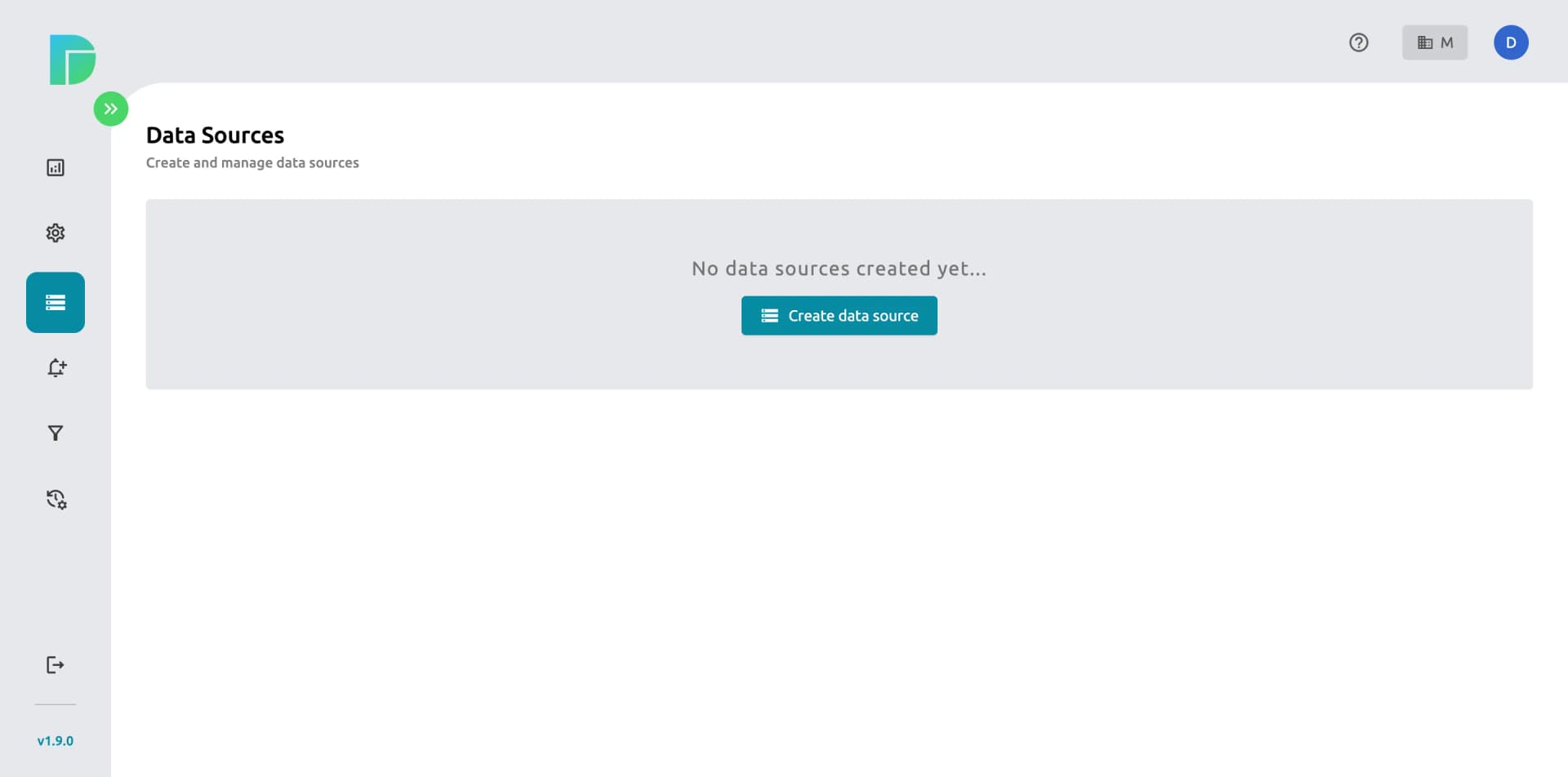
3. Select Grafana as the data source type.
4. Fill in the connection details:
- Name: Assign a distinctive name to your data source.
- URL: Input the URL(grafana url) of the data source.
- Username: Enter the username associated with the data source, if applicable.
- Password: Provide the corresponding password for the provided username
5. Click Save & Test to confirm DataViRe can reach your Grafana dashboard data.

Once the connection succeeds, DataViRe can pull data from any dashboard on that Grafana instance, which means you're ready to build your first automated export.
Step 2: Create an Advanced Report to Export Your Grafana Dashboard
With your Grafana data source connected, the next step is creating an Advanced Report. This is where you define exactly what gets exported, how it looks, and when it's delivered the three things native Grafana exports can't do at all.
Go to the Reports page and click Create new report. From here, the report wizard walks you through three stages: selecting a data source, styling the report, and scheduling delivery.
Select Your Data Source & Report Details
On the first screen, provide the core details for your report:
- Name: a descriptive name so the report is easy to find later.
- Select the data source: choose the Grafana connection you set up in Step 1.
- Organization: specify which Grafana organization the report should pull from.
- Dashboard: pick the specific dashboard you want the report built from.
You can then fine-tune the export with a few optional settings:
- Time range: restrict the data to a specific window (last 24 hours, last week, a custom range, and so on) so that every scheduled export automatically covers the correct period.
- Report type: select Advanced Report.
- Report template: choose from DataViRe's four built-in templates (portrait dark, portrait light, landscape dark, landscape light), or apply a template you've customized yourself.
- Format: choose PDF, Excel, or CSV depending on who's receiving the report.
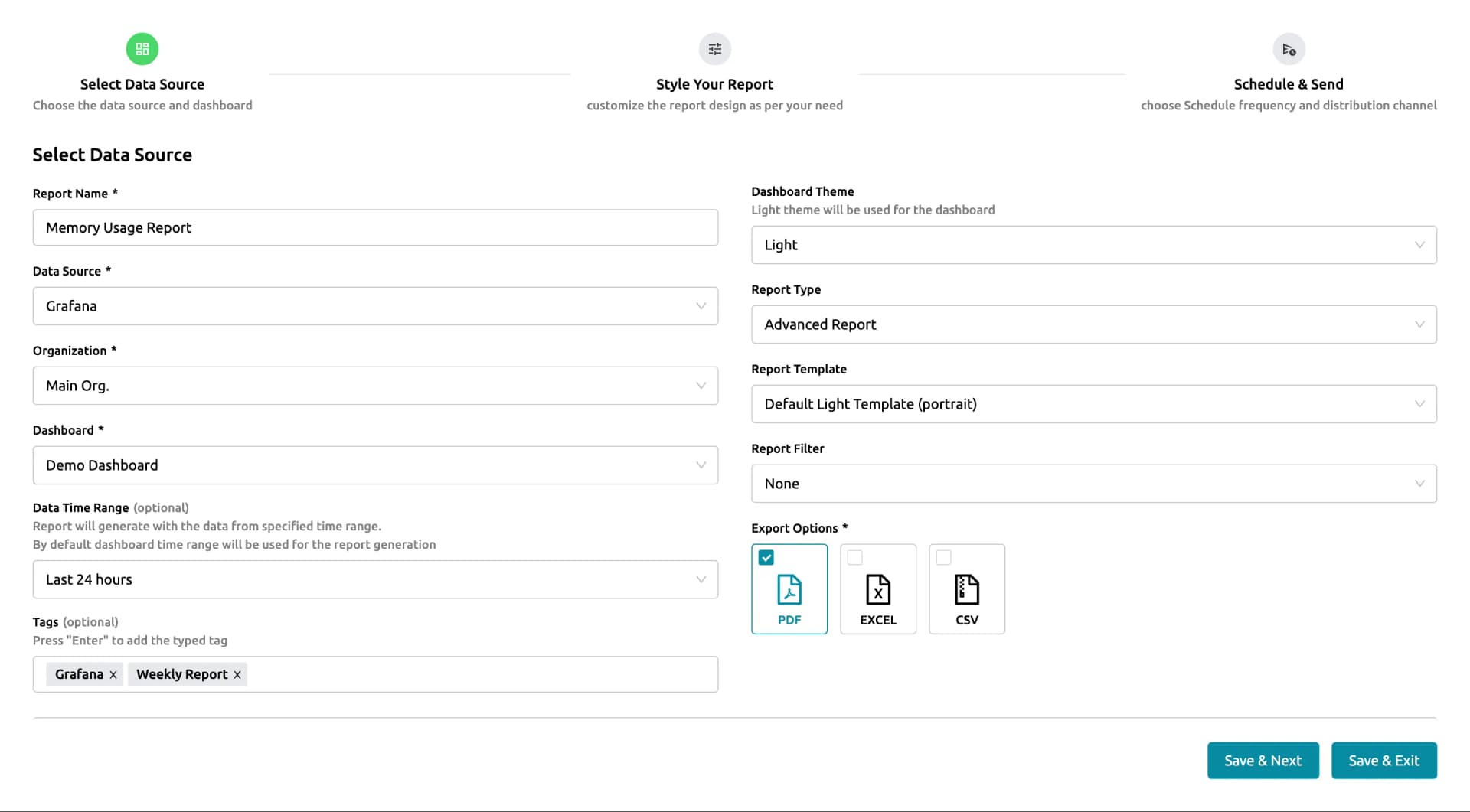
This step is where DataViRe solves the biggest gap in native Grafana exports: you export a full dashboard as a single structured file, in the format your stakeholders actually need not one panel's CSV at a time.
Style Your Report
Next, style the report so it matches how it'll actually be used client-facing, internal, or compliance documentation.
DataViRe lets you customize:
- Fonts and color scheme
- Background and branding elements
- Images and additional layout elements
- Per-panel layout, so each panel can be arranged independently within the final PDF or Excel file
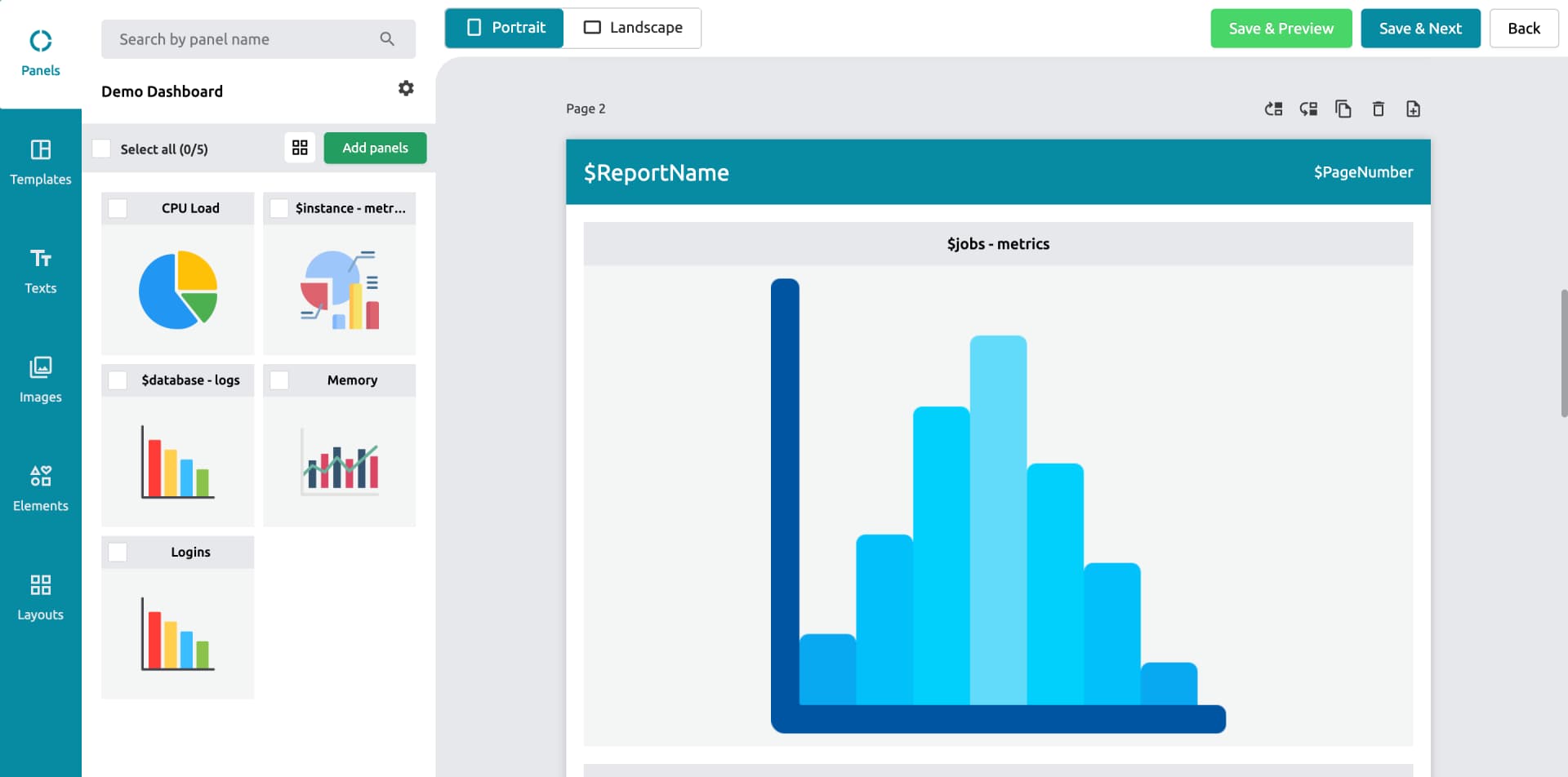
This step matters most when the export is going outside your team; a branded, well-formatted PDF reads very differently to a client than a raw dashboard screenshot.
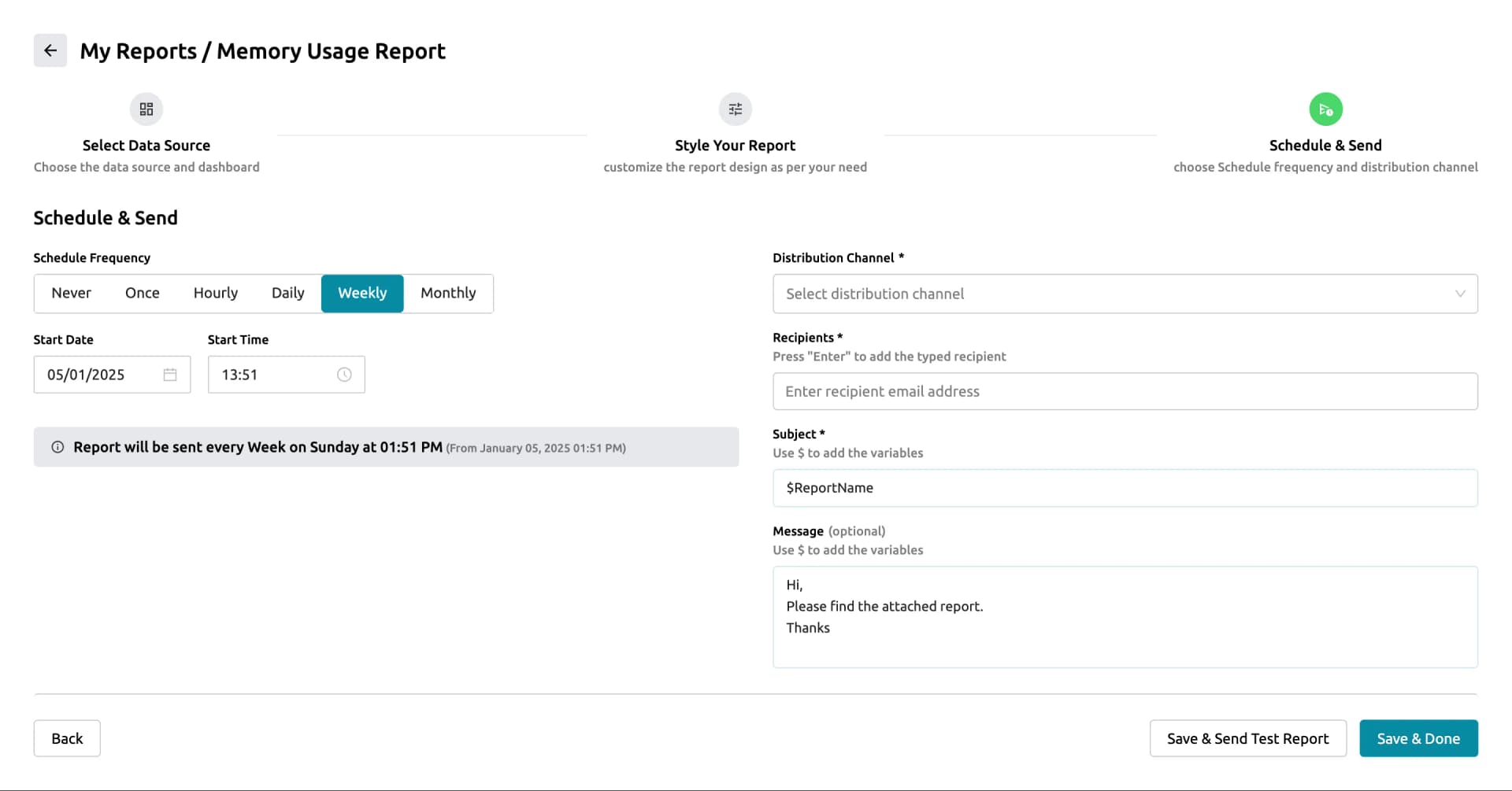
Schedule & Send
The final step is where the report goes from a one-off export to an automated Grafana reporting workflow.
Set the report to generate and deliver automatically:
- Frequency hourly, daily, weekly, or monthly
- Delivery channel Email (with Slack, Teams, and WhatsApp available depending on your setup)
Once scheduled, the report runs on its own. There's no need to log back into Grafana, re-export a panel, or manually rebuild the file; the same PDF, CSV, or Excel export lands in the right inbox on the schedule you set.
Together, these two steps connecting the data source and building an advanced report replace the entire manual workflow that Grafana OSS requires for exporting dashboard data to PDF, CSV, or Excel, while still working on Grafana OSS with no Enterprise licence needed.
Which Export Approach Is Right for Your Team?
Ultimately, the right choice depends on how often you export and what format you need.
Stick with Native Grafana Exports If:
- You only need occasional CSV downloads from single panels
- PDF exports are not needed, or you already have Grafana Enterprise
- Exports are one-off and fully manual
- Downstream systems do not depend on consistent data
For lightweight, ad-hoc analysis, native tools are therefore often enough. However, as soon as your export needs grow, they will start to slow you down.
Use DataViRe to Export Grafana Dashboard to PDF, CSV & Excel If:
- You need to export Grafana dashboard to PDF without an Enterprise licence
- Excel (XLSX) is required for finance, compliance, or audits
- Exports must run on a schedule without manual work
- Reports go to clients, partners, or outside stakeholders
- Data must reach Slack, Teams, or WhatsApp automatically
- You run Grafana OSS and need full export capability
At this point, exporting data is no longer a side task. Instead, it is part of how your team operates and shares results. Therefore, a dedicated tool handles this far better than native options. In addition, it removes the engineering overhead of building and maintaining custom export scripts.
Final Thoughts
Grafana is great at showing data. However, getting that data out in a clean, usable format is a different problem entirely. Native exports work for small manual tasks. But as export needs grow, teams need a tool built for scheduled, multi-format, automated delivery.
The right export approach depends on your formats, your audience, and your schedule. For teams that need to export Grafana dashboard to PDF, CSV, and Excel on a regular basis, a dedicated tool like DataViRe removes the manual work. Moreover, it delivers data where it needs to go, automatically and on time.
For teams that also need full reporting workflows, not just raw data, our guide on automated Grafana PDF reports explains how to move from basic exports to fully scheduled report delivery.
Frequently Asked Questions
How do I export Grafana dashboard to PDF?
On Grafana Enterprise or Cloud, go to the dashboard, click Share, and select the PDF export option. However, Grafana OSS does not support PDF export natively. Therefore, a tool like DataViRe is needed to export Grafana dashboard to PDF on the free version.
Can I export Grafana data to Excel?
No. Native Grafana only supports CSV and PDF. However, DataViRe exports Grafana data directly to Excel (XLSX) on a schedule. As a result, finance and audit teams can get structured spreadsheets without any manual reformatting.
How do I export an entire Grafana dashboard as CSV?
Native Grafana only exports one panel at a time as CSV. To export a full dashboard as a single CSV file, you need a third-party tool. Therefore, DataViRe is the right choice, as it handles multi-panel exports in one run.
Can I automate Grafana data exports?
Yes, but not with native tools. Native Grafana has no scheduling or automation for exports. However, DataViRe lets you schedule PDF, CSV, and Excel exports hourly, daily, weekly, or monthly. Moreover, it delivers them automatically with no manual step required.
Does Grafana OSS support PDF export?
No. PDF export is only available on Grafana Enterprise and Grafana Cloud. However, DataViRe works with Grafana OSS and supports PDF, CSV, and Excel exports without any Enterprise licence. Therefore, OSS teams do not need to upgrade just for export capability.
What is the best tool to export Grafana dashboard to PDF, CSV, and Excel automatically?
DataViRe is built specifically for this use case. It supports all three formats, works with Grafana OSS, and runs on a schedule. Furthermore, it delivers exports via email, Slack, Teams, and WhatsApp automatically.